Smart Routing Configuration
Smart Routing lets payFURL automatically select the best provider for each transaction. You can configure it under Providers > Smart Routing in the dashboard.
Routing Modes
There are three options:
| Mode | Description |
|---|---|
| Disabled | No automatic provider selection. You must specify a provider for each transaction. |
| Simple Smart Routing | Selects the lowest-cost provider for the given amount and currency. |
| Success-Weighted Routing | Balances cost and historical success rates to pick the best provider overall. |
Enabling Smart Routing
- Navigate to Providers > Smart Routing in the dashboard.
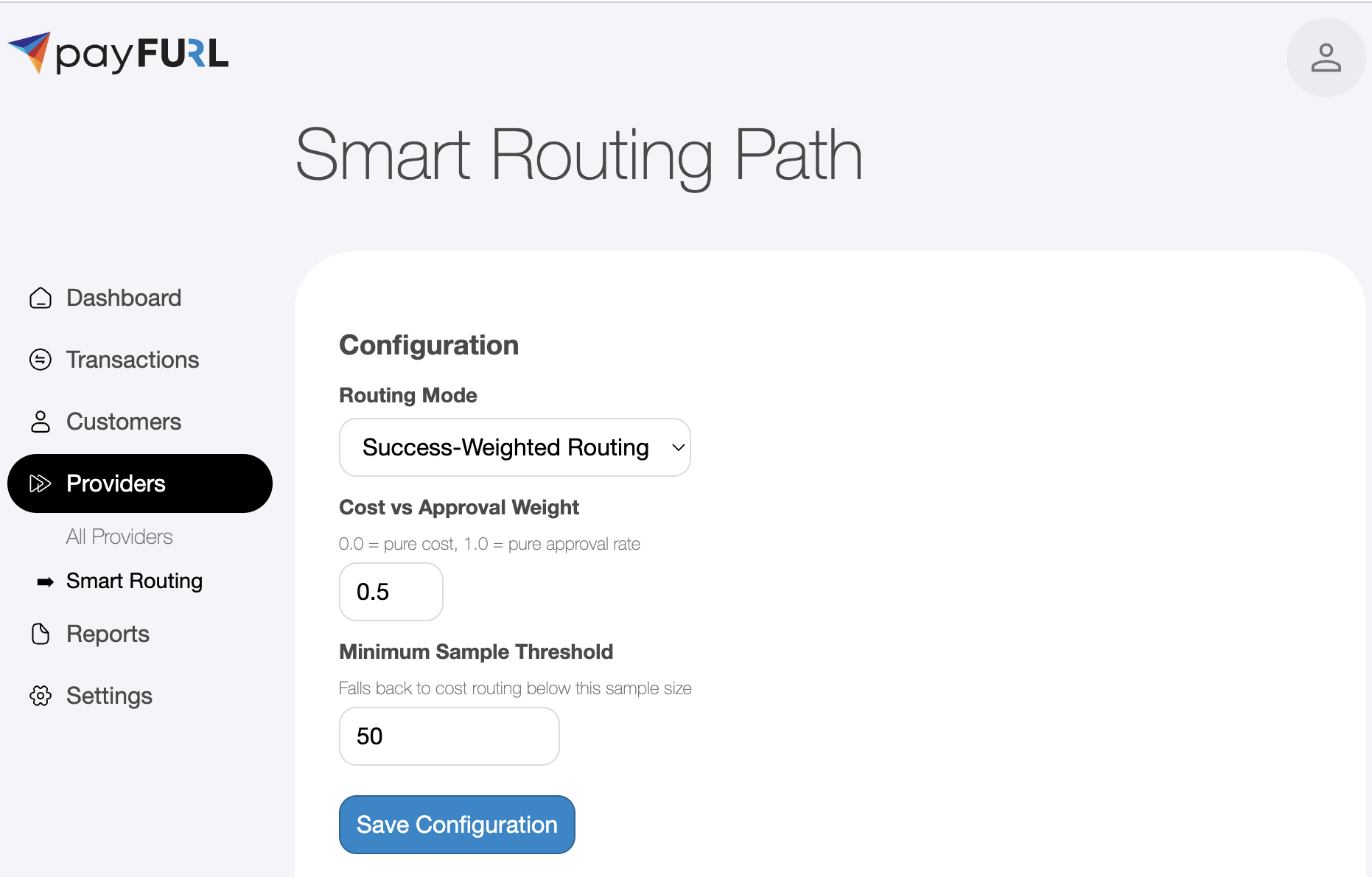
- Under Configuration, select a routing mode from the dropdown.
- If you select Success-Weighted Routing, two additional fields appear:
- Cost vs Approval Weight — controls the balance between cost and approval rate (0.0 = pure cost, 1.0 = pure approval rate, default 0.5).
- Minimum Sample Threshold — the minimum number of transactions required before success rate data is used for a provider (default 50). Providers below this threshold fall back to cost-only scoring.
- Click Save Configuration.
How Success-Weighted Routing Works
When Success-Weighted Routing is enabled, the system scores each eligible provider using both cost and success rate:
- Cost score — based on the provider's estimated cost relative to the cheapest and most expensive options.
- Success rate — the provider's historical approval rate.
- Combined score — the cost and success rate are blended using the configured weight. A higher score means a better provider.
If a provider has fewer transactions than the minimum sample threshold, only cost is used for that provider. If no success metrics are available at all (e.g., on first setup), the system falls back to pure cost routing.
Cost Tool
The Cost Tool on the Smart Routing page lets you preview how providers are ranked for a given amount and currency.
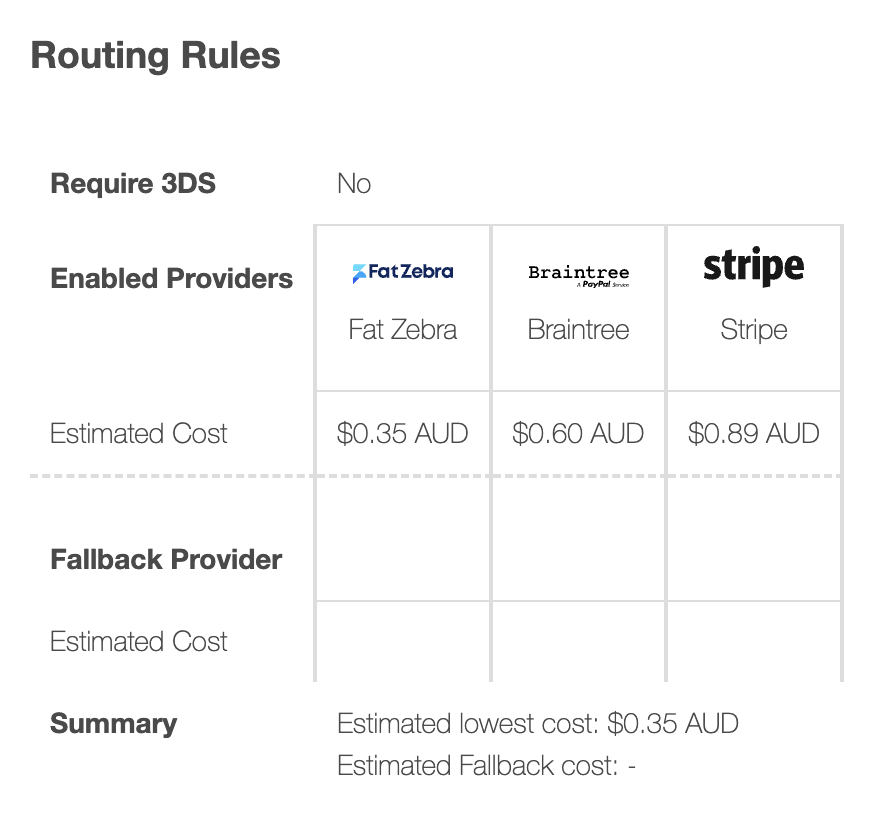
With Simple Smart Routing, the Cost Tool displays each enabled provider and its estimated cost. The lowest-cost provider is shown first.
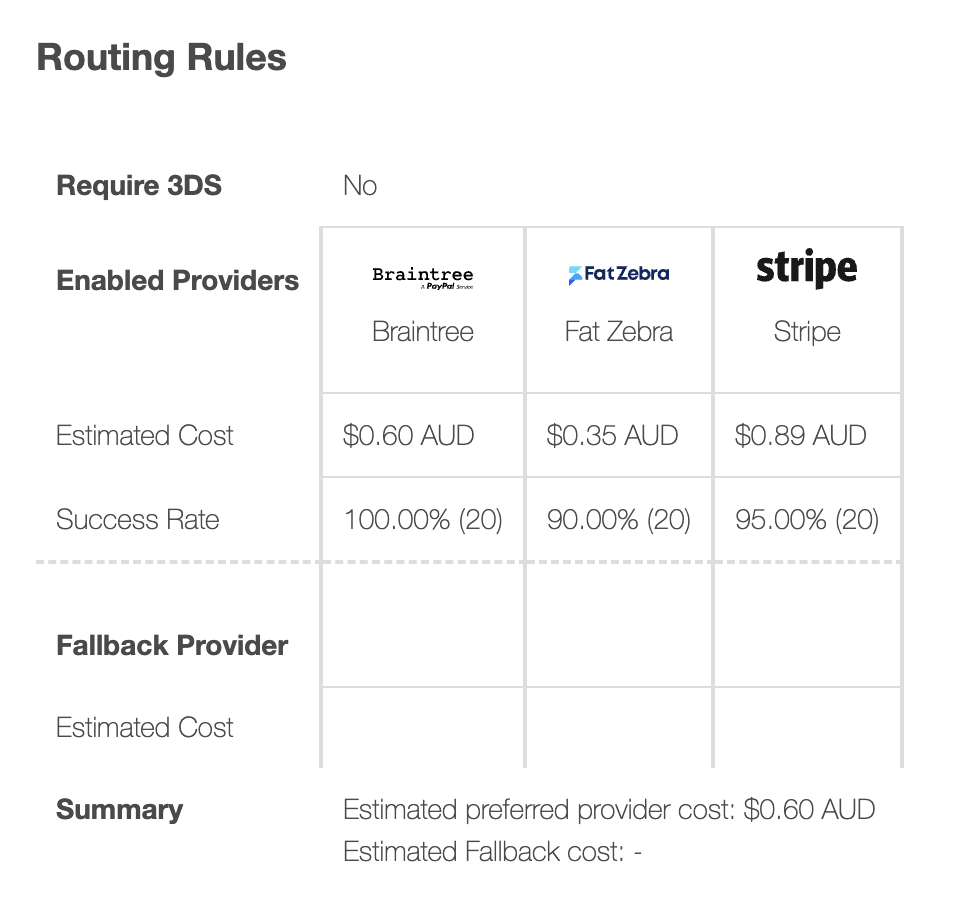
With Success-Weighted Routing, the Cost Tool also displays a Success Rate column showing each provider's historical approval rate and sample size (e.g. "95.00% (20)"). Providers are ranked by the combination of cost and success rate based on your configured weight.
Tips
- Start with the default weight of 0.5 and adjust based on your results.
- A weight of 0.0 behaves identically to Simple Smart Routing.
- Set the minimum sample threshold high enough to avoid routing decisions based on too few transactions. The default of 50 is a reasonable starting point.